

You might want to convert a Windows 10 MBR disk to GPT for several reasons. MBR supports disk sizes up to 2TB, so to use space beyond 2TB, converting to GPT is necessary. Additionally, MBR only supports up to 4 primary partitions or 3 primary partitions plus one extended partition, whereas GPT allows almost unlimited partitions. Converting to GPT can also fix installation errors, such as the error “Windows cannot be installed to this disk.
The selected disk has an MBR partition table. On EFI systems, Windows can only be installed to GPT disks.” Finally, upgrading to Windows 11 from Windows 10 requires a GPT disk for UEFI boot mode, making this conversion essential for the upgrade. This conversion helps in utilizing the full potential of your storage, creating more partitions, solving installation issues, and preparing your system for newer Windows versions.
How to convert MBR to GPT in Windows 10 without data loss?
Users want to know if they need to reinstall the OS if they want to change a system disk. Traditional methods like using CMD only converts empty MBR disks to GPT. This requires deleting all partitions and risking data loss. Using Command Prompt to convert a system disc is risky since the system partition can’t be deleted while the disc is being used.
You can avoid losing your data and having to restart Windows by using the AOMEI Partition Assistant. This is a powerful conversion tool that can change both data and system discs from MBR to GPT in just three steps, without impacting your data.
Here are some of the benefits of using AOMEI Partition Assistant to convert MBR to GPT:
- Its current, easy-to-use graphical interface makes it simple to change from MBR to GPT on Windows 10 with just a few clicks.
- You can change the partition style to GPT while keeping your data safe on different versions of Windows, such as 7, 8, 8.1, 10, and 11.
- Besides changing system MBR discs to GPT, it can also change external MBR hard drives to GPT without deleting any partitions. AOMEI software also allows you to reset Windows password, cleaning PC, recover lost data, and so on.
- This tool helps you change a GPT disc back to an MBR disc if you change it by accident.Below are the steps to convert a disk partition style from MBR to GPT without reinstalling the OS or losing data with the help of AOMEI Partition Assistant:
Note: Please make sure your computer supports the UEFI boot mode or change Legacy to UEFI to avoid boot issues if you need to change the system disk.
Step 1. Install and launch AOMEI Partition Assistant. When you enter the main interface, select the disk you want to convert to GPT whether it is a system disk or a data disk, right-click on it and select “Convert to a GPT” from the feature menu.


Step 2. It will pop up a window that you need to confirm. Click “OK” and you’ll be back to the main interface.
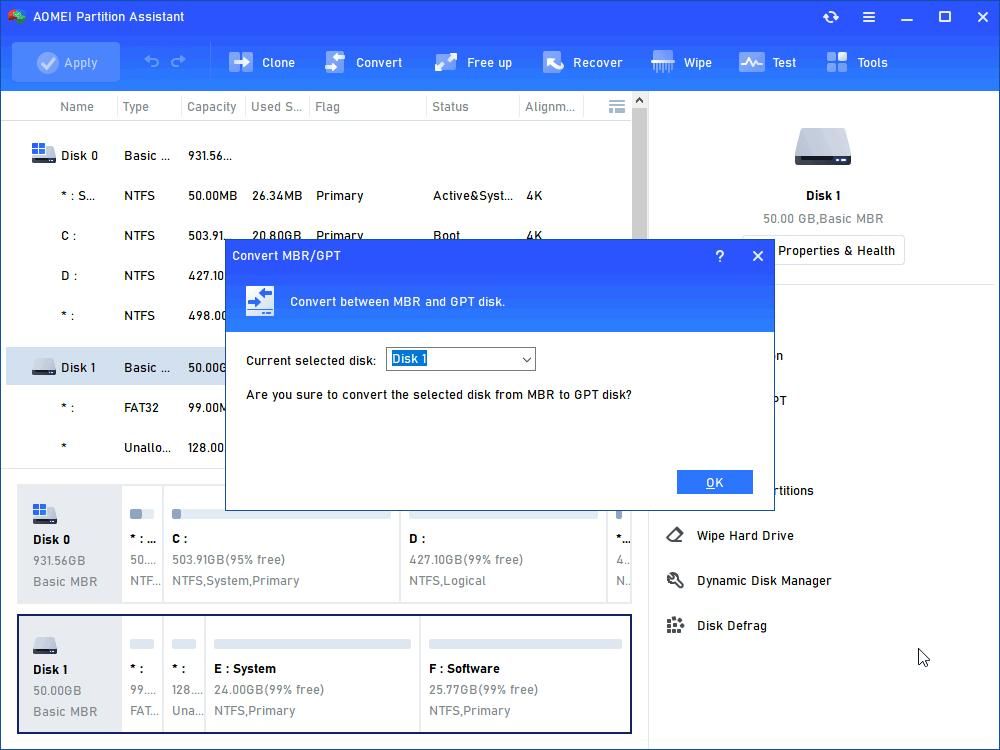
Step 3. Here you can see that the disk has been converted into GPT, but it’s not the end. You need to click “Apply” at the toolbar to execute the task.

By using this tool, you can seamlessly convert your MBR system disk to GPT, maintaining all your data and system configurations intact.
Conclusion
Here’s how to change Windows 10 from MBR to GPT. You can do a lot of complicated disc management jobs with AOMEI Partition Assistant. Some of these are burning ISO to USB, moving the operating system drive to an SSD or HDD, moving apps or groups to a different drive, getting files back from an SSD, testing the speed of a hard drive, and more.

Bhupendra Singh Chundawat is a seasoned technology journalist with over 22 years of experience in the media industry. He specializes in covering the global technology landscape, with a deep focus on manufacturing trends and the geopolitical impact on tech companies. Currently serving as the Editor at Udaipur Kiran, his insights are shaped by decades of hands-on reporting and editorial leadership in the fast-evolving world of technology.