

Why Switch to a New SSD?
Thinking about upgrading your Windows to a new SSD? If your old hard drive is on its last legs or just doesn’t meet your needs anymore, it’s time to consider a new drive. Here’s why making the switch might be a good idea:
- Drive Problems: Your old drive is failing and needs replacing.
- More Space: You want to move from a smaller drive to a larger one.
- Performance Boost: Switching from an HDD to an SSD can significantly speed things up.
Can You Move Windows to a New Drive?
Wondering if you can move Windows 10/11 to new SSD without starting from scratch? You totally can! There’s no need to reinstall everything. You can transfer Windows to a new drive and keep all your data and settings just as they are. Just remember, you’ll need a special tool for this, not just a simple drag-and-drop.
In this guide, I’ll show you how to easily move Windows 10 to a new drive. The steps work for Windows 11, 8.1/8, 7, and more.
Moving Windows to a New Drive: Simple Steps
Upgrading to a new hard drive or SSD? You’ve got a couple of straightforward options: disk cloning or backup & restore. Both methods let you move all your programs, files, and settings without reinstalling Windows 11/10.
For the easiest transition, disk cloning is the way to go. Here’s how it works: install the new drive, clone your system, and boot from the new drive. No need for USBs or other bootable media—just some specialized software since Windows doesn’t include a cloning tool.
That’s where AOMEI Backupper comes in. It’s packed with features to make moving your OS a breeze:
- Disk Clone: Clones everything on your current disk, including Windows and non-Windows partitions.
- System Clone: Automatically selects the system partitions so you only move Windows to the new drive.
- Intelligent Copy: By default, it copies just the used space, making it easy to migrate Windows 10 to a smaller SSD. You can also opt for a sector-by-sector clone if needed.
- System Restore: This free feature lets you use the backup and restore method to transfer Windows, even to smaller disks, without needing a bootable USB.
Ready to dive in? Let’s walk through the steps to get it done:
Moving Windows to a New SSD: Easy Peasy Steps
Want to upgrade to a new SSD without the fuss of using a USB? Disk cloning is your best bet! Here’s a simple guide to move Windows 10, 11, or even Windows 7 to your new drive.
Step 1: Connect Your New SSD
First, plug in your new SSD or hard drive. Then, open up AOMEI Backupper.
Step 2: Go to the Clone Tab
In AOMEI Backupper, head to the “Clone” tab. Click “Disk Clone” if you want to copy everything from your old drive. If you only need to move Windows, choose “System Clone.”
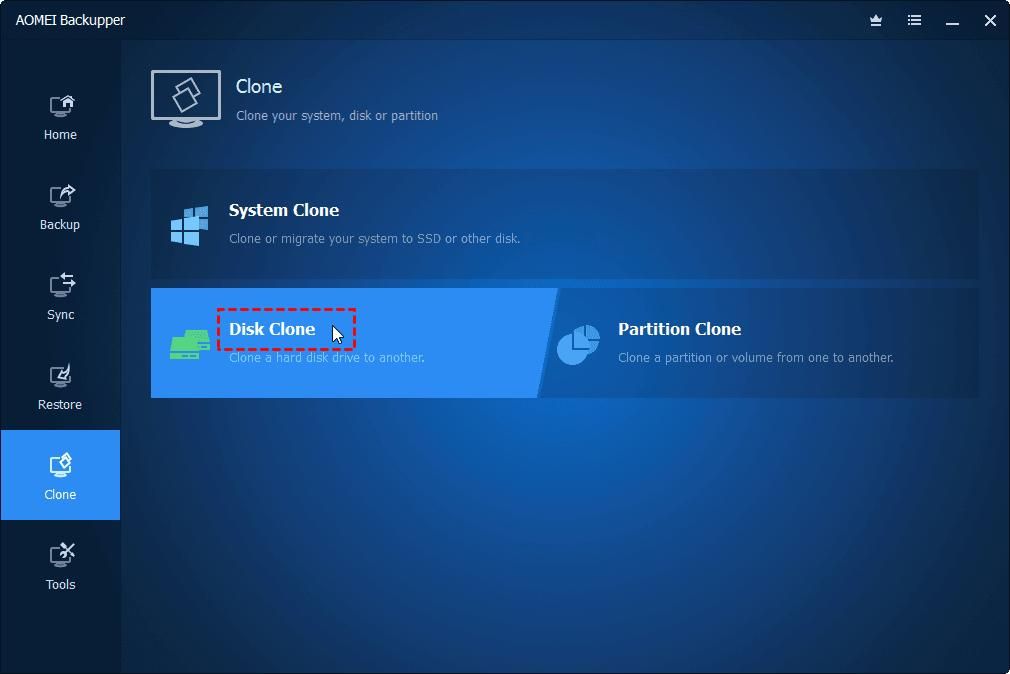

Step 3: Choose Your Drives
Pick your old drive with Windows on it and click “Next.” Then, select your new drive—whether it’s a larger HDD or a smaller SSD. Make sure it’s formatted as MBR or GPT. Click “Next” to proceed.
Step 4: Start Cloning
Double-check your selections and hit “Start Clone.”

Once it’s done, your Windows setup will be successfully transferred to the new drive. It’s that simple!
Move Windows to a New Drive Fast and Securely
Looking to move Windows to a new drive quickly and safely? Disk clone software is the way to go, and AOMEI Backupper is an excellent choice. It’s packed with features for cloning both disks and systems, making it super easy to transfer Windows 10 or Windows 11 from an old hard drive to a new, bigger HDD or a speedy SSD.
Need to switch your hard drive to a new computer without reinstalling Windows? AOMEI Backupper’s Universal Restore feature has got you covered. It ensures your system boots up smoothly even if you’re moving to different hardware. Give it a try and see how effortless it can be!

Bhupendra Singh Chundawat is a seasoned technology journalist with over 22 years of experience in the media industry. He specializes in covering the global technology landscape, with a deep focus on manufacturing trends and the geopolitical impact on tech companies. Currently serving as the Editor at Udaipur Kiran, his insights are shaped by decades of hands-on reporting and editorial leadership in the fast-evolving world of technology.