

Why Transfer Google Photos to Another Account?
Google Photos is a fantastic tool for keeping your memories safe and organized. It’s free, easy to use, and back up your photos automatically. Plus, searching through years of pictures is a breeze with their powerful search features. But life throws curveballs, and sometimes you might need to move your photos to a different account. Let’s explore why that might happen:
- Free Up Space for More Memories: Running out of space in your Google Photos account? Transferring photos to another account can help free up precious storage for new adventures.
- Work-Life Photo Balance: Ever get work presentations mixed up with family vacations? Keeping personal and professional photos in separate accounts can make organization a breeze. No more hunting through work documents to find that cute cat picture!
- One Account to Rule Them All: Juggling multiple Google accounts? Consolidate your photos into a single account with MultCloud. This way, you’ll have all your memories in one easy-to-access place.
How to Transfer Google Photos Using MultCloud
Struggling to move photos between Google Photos accounts, or tired of juggling files across different cloud storage services? MultCloud can be your hero! This multiple cloud storage manager lets you ditch the app switching and transfer files between Google Drive, Dropbox, OneDrive, Google Photos, and a whole bunch of others with just a few clicks. No more tech headaches – MultCloud is fast, secure, and super easy to use.


Here’s a step-by-step guide to migrating Google Photos to another account:
Step 1: Create a MultCloud Account
Sign up for a free MultCloud account if you haven’t already.

Step 2: Link Your Google Accounts
Once logged in, add both of your Google accounts to MultCloud by granting the necessary permissions.

Step 3: Initiate the Transfer
Navigate to the “Cloud Transfer” tab. Select your source Google account (the one from which you want to transfer photos) and the destination Google account.
Note: You can choose to transfer specific albums or all photos. MultCloud also allows you to schedule transfers, making it easy to automate future moves.
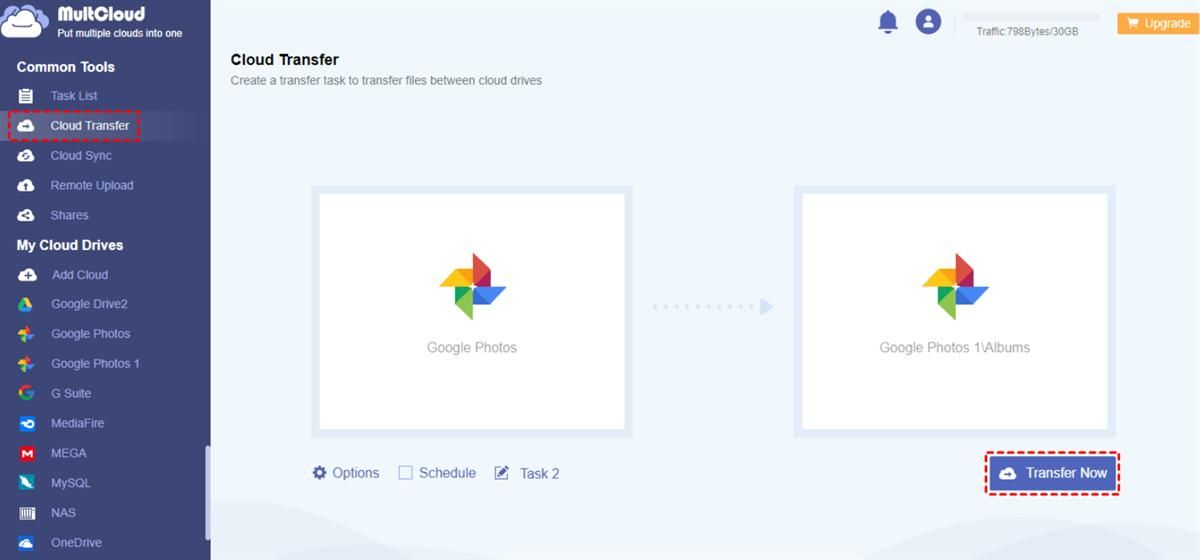
Step 4: Start the Transfer
Click the “Transfer Now” button to begin the process. MultCloud handles the rest, ensuring a smooth and secure transfer.
As you can see, the steps to transfer photos from one Google Photos account to another are simple and easy. Similarly, you can migrate Google Drive to OneDrive seamlessly and effortlessly. Anyway, this service offers many conveniences and eases your burden.
Why Choose MultCloud?
MultCloud stands out for several compelling reasons when you want to migrate photos between Google Photos accounts. Here are some examples:
- Tech-Savvy Not Required: Even if you’re new to the world of cloud storage, MultCloud’s user-friendly interface makes transferring photos a breeze. No need to be a computer expert to move your memories between different accounts!
- Fort Knox for Your Photos: Security is a top priority for MultCloud. They use top-notch encryption to keep your photos safe during transfers, protecting them from both data loss and sneaky hackers.
- Your Cloud, Your Choice: Don’t be limited by your cloud storage provider. MultCloud works with a huge range of services, including Google Photos, so you can move your photos wherever you want.
- Efficient and Fast: MultCloud’s powerful servers ensure quick and efficient transfers, even for large photo libraries.
- Scheduled Transfers: For ongoing needs, you can set up automated, scheduled transfers, ensuring your photo library is always up to date.
Apart from cloud-to-cloud transfer, MultCloud enables you to sync and back up files across cloud drives without downloading. In detail, when you intend to sync folders between cloud drives, you have 9 smart options, including one-way and two-way syncs. So, you can always keep your data up-to-date on both clouds.
When it comes to cloud-to-cloud backup, you have the option to back up files or folders across cloud drives. After backing up files, you can restore backups without any effort. MultCloud provides the vision history feature, allowing you to choose the specific item you want to back up.
Conclusion
Transferring Google Photos between accounts doesn’t have to be a daunting task. With MultCloud, the process is streamlined, secure, and efficient. Whether you’re managing storage, organizing your photo library, consolidating accounts, or switching email addresses, MultCloud provides a reliable and user-friendly solution.
In a nutshell, MultCloud’s robust features, high security, and seamless operation make it the ideal choice for anyone looking to manage their digital photos more effectively. Now, you can give MultCloud a try and experience the ease of hassle-free photo transfers today!

Bhupendra Singh Chundawat is a seasoned technology journalist with over 22 years of experience in the media industry. He specializes in covering the global technology landscape, with a deep focus on manufacturing trends and the geopolitical impact on tech companies. Currently serving as the Editor at Udaipur Kiran, his insights are shaped by decades of hands-on reporting and editorial leadership in the fast-evolving world of technology.