

Being able to use a computer remotely is quite helpful in a society where working remotely is commonplace. Free remote desktop software can be a game-changer for anyone who has to manage distant servers for work, needs remote IT support services from an IT support specialist while on the go, or just wants to access your home computer while on the go. But what happens if your finances are limited? Fortunately, there are a number of robustly feature-rich free remote desktop software solutions available. We’ll go over the top free remote desktop apps in this guide, along with their advantages and why AnyViewer is a particularly good option.
Free remote desktop software— AnyViewer
AnyViewer is often regarded as the gold standard in remote desktop software and for good reason. Its combination of ease of use, comprehensive features, and strong security makes it a top choice for users seeking reliable remote access. Whether you’re managing remote servers, providing technical support, or accessing your own devices, AnyViewer’s intuitive interface and robust capabilities ensure a seamless experience.
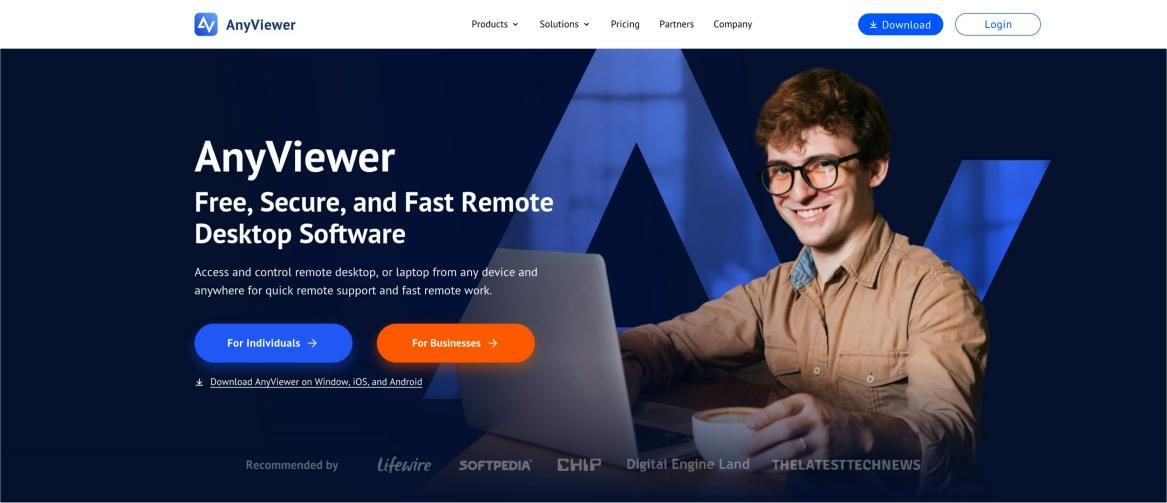

AnyViewer supports unattended remote access, file transfers, multiple monitor setups, and screen sharing. It is also free for both commercial and personal use. What sets AnyViewer apart is its blend of simplicity and functionality, catering to both beginners and advanced users. Whether you’re assisting a friend with their computer or accessing your work computer from home, AnyViewer’s versatility and reliability make it an outstanding choice.
Why choose AnyViewer as your free remote desktop software?
One of the best free remote desktop software for Windows is called AnyViewer, and it is understandably popular. It offers several outstanding advantages, such as:
- Free: AnyViewer is a top choice for those seeking free remote control software. It offers a comprehensive free version suitable for both personal and commercial use, equipped with all the essential features you need.
- High Compatibility: Compatibility is important, and AnyViewer performs admirably in this regard. It ensures efficient remote control across a variety of devices, including mobile ones, by supporting a broad range of systems, including Windows, Windows Server, iOS, and Android.
- Enhanced Security: One of the main issues with remote access is security. AnyViewer protects your connections using strong 256-bit Elliptic Curve Cryptography (ECC) and two-factor authentication.
- User-friendly Interface: For those who prefer simplicity, AnyViewer’s clean and intuitive interface makes setup and use straightforward, avoiding any complex learning curves.
- Fast and Stable Connection: AnyViewer ensures a fast and reliable remote control experience. It uses advanced technology to connect you to the best servers, maintaining consistent performance.
- High-Quality Video and Sound: During your remote meetings, AnyViewer lets you enjoy crisp, high-quality images and audio. To have the best experience possible, you can change the settings to suit your tastes.
- No Need for Router or Firewall Configuration: AnyViewer allows remote control across different networks without requiring a router or firewall configuration for port forwarding.
- Scalability: Whether you’re part of a large organization needing extensive remote support or an individual seeking occasional access, AnyViewer offers scalable solutions to meet your needs.
- Comprehensive Features: Beyond basic remote control, AnyViewer includes a variety of features such as file transfer, screen sharing, text chat, remote sound, and support for multiple sessions, enhancing its versatility for various tasks.
How to use AnyViewer for free remote desktop
Here are the steps to set up unattended remote access with AnyViewer, allowing you to control a desktop without supervision:
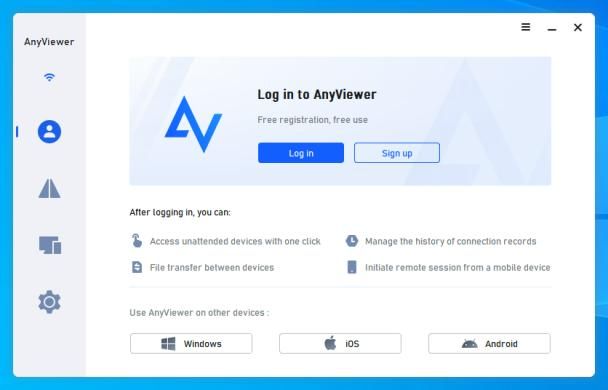
Step 1. Install and open AnyViewer on both devices. Log in if you have an account, or Sign up to create a new one. Make sure the accounts on the two devices are the same.
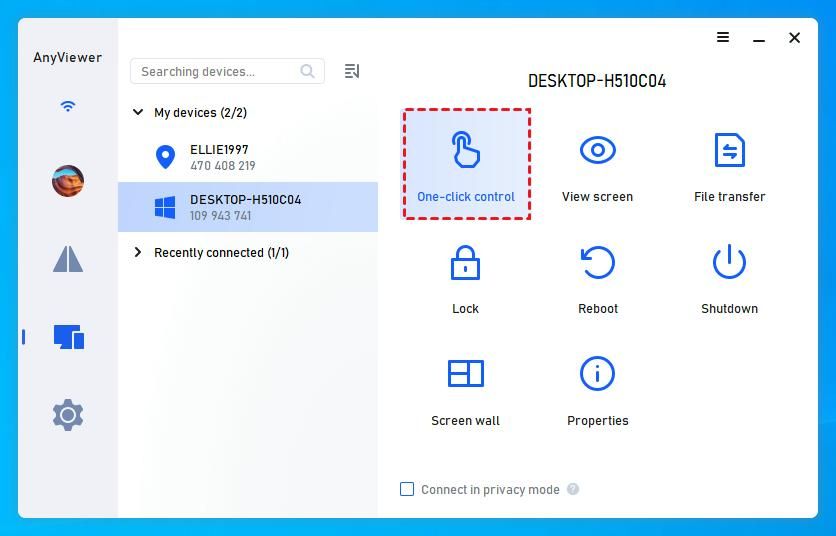
Step 2. Navigate to “Devices” and select the device you want to connect to. To allow unattended remote access, click on it and select “One-click control“.
Conclusion
It’s crucial to have dependable, free remote desktop software available in the modern digital world. AnyViewer is a great option that provides the ideal balance of performance, security, and usability. With its user-friendly interface, strong security measures, and support for multiple platforms, AnyViewer ensures seamless remote access for both personal and professional use.
Over 60 million users have trusted AnyViewer over the last six years, making it a highly regarded software. AnyViewer offers a quick, dependable connection with crisp images and audio, perfect for managing servers or lending a hand to friends. It is the best option for anyone looking for premium remote desktop features without breaking the bank because it is free.

Bhupendra Singh Chundawat is a seasoned technology journalist with over 22 years of experience in the media industry. He specializes in covering the global technology landscape, with a deep focus on manufacturing trends and the geopolitical impact on tech companies. Currently serving as the Editor at Udaipur Kiran, his insights are shaped by decades of hands-on reporting and editorial leadership in the fast-evolving world of technology.