

Google Chrome for Android has a new feature called “Listen to this page” that allows the browser to read text-heavy web pages. The Text-to-Speech (TTS) feature is built into the Android app and is accessible to users via the three-dot menu icon.
This feature opens a mini player with play/pause options, progress bar, playback speed options, etc. Users can also listen to web pages in different voices and different languages.
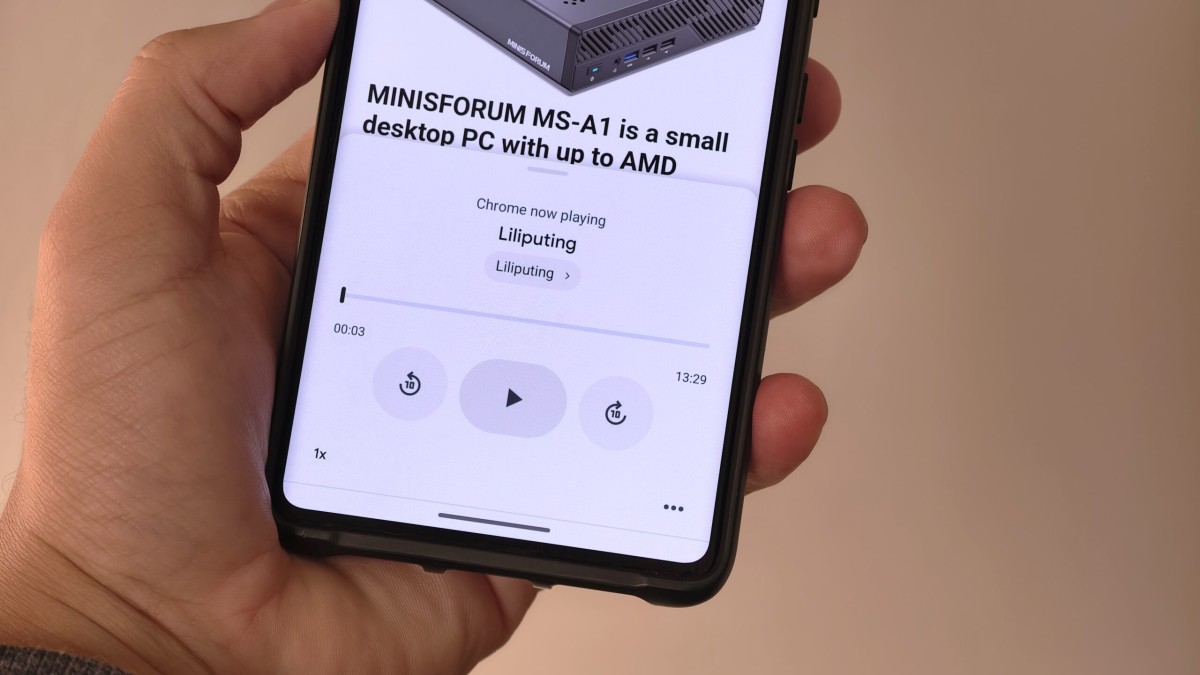

Google Chrome’s “Listen to this page” feature
According to the feature’s dedicated support page, it can be used to read text on websites while using an Android device. This feature allows the user to play a sound when switching to another tab. You can play the sound even when the screen is locked. The feature is rolling out to users, but a broader rollout may take a few weeks. This feature is available in Google Chrome version 125. Gadgets 360 employees saw this new feature in the latest version of Chrome for Android.
Google Chrome’s Listen to this page feature supports multiple languages including Arabic, Bengali, Chinese, English, French, German, Hindi, Indonesian, Japanese, Portuguese, Russian, and Spanish. In addition, the user has different types of sounds to choose from. The TTS feature has English (US) audio options: Ruby (Mid-Bottom, Warm), River (Mid-Bottom, Quiet), Field (Low, Bright), and Moss (Low, Quiet). In English (UK) there is Cloud (mid-tone, soothing) and Dale (deep, mild) and in English (India) there is Lake (mid-tone, mild).
When you enable this feature, you will see a mini player at the bottom of the screen with play/pause options, a progress bar, 10 second fast forward/rewind, and playback speed options. Reading the text aloud by voice also automatically scrolls the overflow menu. When you close the app, the sound stops. Google Chrome remembers where you left off, and when you reopen the app, you can pick up where you left off.
How to use Google Chrome’s “Listen to this page” feature
- Open the Google Chrome app on your Android device.
- Open a web page with text. The page should contain a lot of text.
- Once the page has fully loaded, tap the three vertical dots icon in the top right corner.
- Search for “Listen to this page.” Tap on it.
- To change the playback speed: Tap the small player.
- In the player window, highlight the three horizontal dots at the bottom right.
- Tap Playback Speed.
- Tap Audio to change the sound. Tap Preview to try out the sound.
- Tap Highlight text and auto-scroll to enable this feature.

Bhupendra Singh Chundawat is a seasoned technology journalist with over 22 years of experience in the media industry. He specializes in covering the global technology landscape, with a deep focus on manufacturing trends and the geopolitical impact on tech companies. Currently serving as the Editor at Udaipur Kiran, his insights are shaped by decades of hands-on reporting and editorial leadership in the fast-evolving world of technology.