

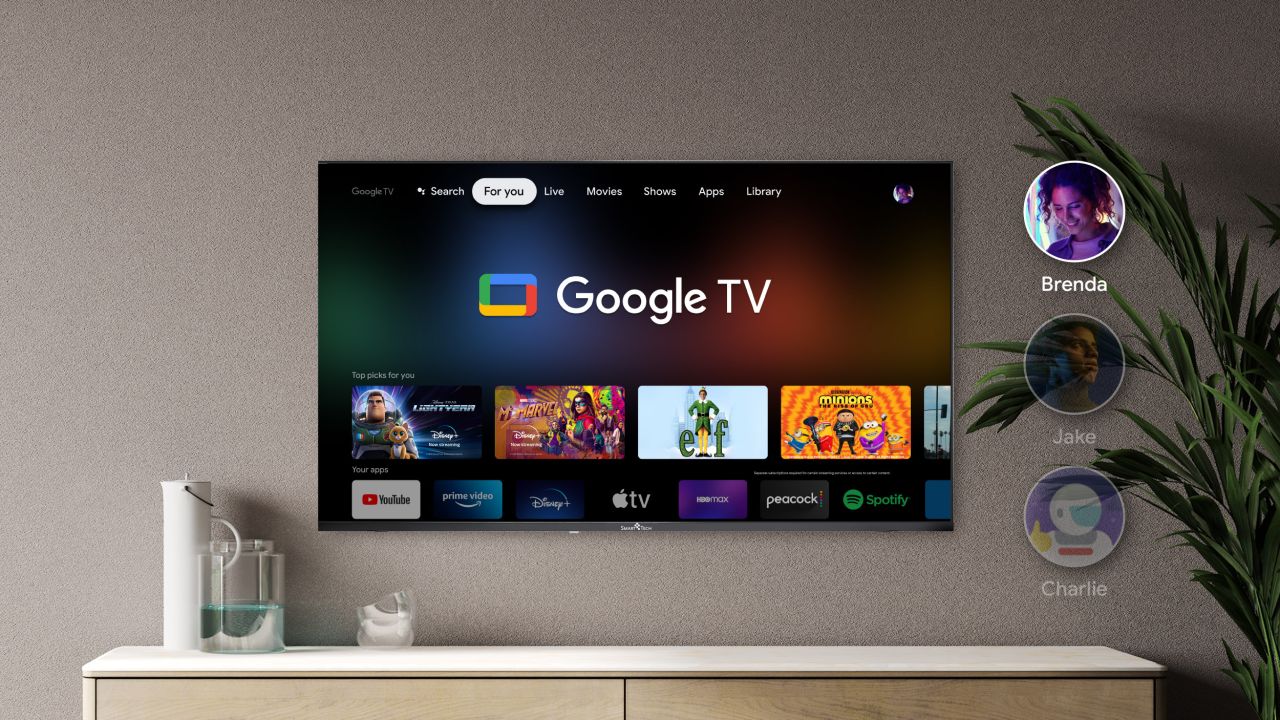

Google has begun rolling out exciting new features for Google TV devices, taking the user experience to a new level. Among the most noteworthy updates is the addition of custom AI-powered art screensavers, allowing users to transform their TV’s idle screen into a stunning display of creativity. Alongside this, Google is introducing a new home panel that acts as a centralized smart home hub, further expanding the capabilities of Google TV. In this article, we’ll explore these updates in detail and explain how you can set up these new features on your Google TV.
Custom AI Art Screensavers on Google TV
One of the standout features in this update is the ability to set AI-generated art as your TV’s screensaver. Traditionally, when a smart TV enters an idle state, it displays generic stock images. But with Google TV’s latest feature, users can now enjoy a personalized experience by showcasing unique AI-created art or their favorite photos.
The new AI screensavers offer a dynamic way to elevate the appearance of your TV screen. Whether you want to showcase abstract art, landscapes, or something entirely out of the ordinary, this feature lets you customize your idle screen with a flair of creativity.
How the AI Screensavers Work
There are three different ways to create custom AI art screensavers on Google TV:
- Describe Your Idea:
- In this method, users can type in a specific prompt describing the kind of artwork they want to see. For example, typing “sunset over a mountain with a surreal sky” would generate a corresponding piece of AI art. The flexibility in prompts allows users to get creative and see their ideas turned into beautiful visuals.
- Suggested Templates:
- If you’re unsure of what prompt to use, Google TV provides a range of pre-set templates. You can select from these templates to generate AI art that matches your taste or mood.
- Inspire Me:
- For those who want a surprise, the “Inspire Me” option allows the AI to randomly generate a piece of art. You can keep generating new art until you find one that resonates with you.
Once you’ve generated your custom AI art, Google TV allows you to scroll through multiple variations of the image and select your preferred version as your screensaver. If you’re feeling extra creative, you can even generate more images based on different prompts, and set them all as your screensaver.
Use Google Photos for Screensavers
In addition to AI-generated art, Google TV also allows users to display their personal photo albums from Google Photos as screensavers. This feature gives users the flexibility to showcase their cherished memories on the big screen, from family photos to travel moments. However, it’s important to note that users can’t select individual images for the screensaver. Instead, they will need to choose entire albums, which will rotate on the screen when the TV enters Ambient Mode.
How to Set Up AI Art Screensavers on Google TV
Setting up the new custom AI art screensavers on your Google TV device is a straightforward process. Here’s a step-by-step guide to help you get started:
- Go to the Google TV Home Screen:
- Turn on your Google TV and navigate to the home screen.
- Select Settings:
- Scroll to the top right of the screen and select the Settings icon.
- Navigate to Ambient Mode:
- In the Settings menu, go to System, and from there, select Ambient Mode.
- Select Custom AI Art:
- Under the list of available screensavers, choose Custom AI Art. Click on Create New… to begin customizing your screensaver.
- Choose Your Creation Method:
- You can either describe your idea, choose from suggested templates, or use the Inspire Me option to let the AI create something random for you.
- Save and Set Screensaver:
- Once you’ve generated a piece of AI art, use the up and down buttons to scroll through different variations. After finding the one you like, save it to your image library. If you want to generate more artwork, you can add additional prompts. When you’re satisfied, select Set All as Screensaver to apply your images.
The New Google TV Home Panel: A Smart Home Hub
In addition to AI screensavers, Google has also introduced a new home panel on Google TV, designed to act as a centralized hub for managing your smart home devices. The home panel allows users to control connected smart devices, such as lights, thermostats, and security cameras, directly from their Google TV.
With this update, users can access and manage their smart home ecosystem with ease, without the need for additional devices or apps. Whether you want to dim the lights, check who’s at the front door, or adjust the room temperature, it can all be done from the comfort of your couch using your Google TV remote.
Why These Updates Matter
The addition of AI-generated art screensavers and the new home panel underscore Google’s push to make its smart TV platform not just a media hub, but a central part of the connected smart home experience. Here’s why these updates are game-changers:
- Personalization: The AI screensavers offer a unique way to personalize your TV and living space. Instead of looking at generic stock images, users can display customized artwork or personal photos, adding a touch of personality to their home environment.
- Smart Home Integration: With the new home panel, managing your smart home is more seamless than ever. No more juggling between apps or devices—everything is now accessible right from your TV, turning it into a command center for your smart home.
Conclusion
Google’s latest features for Google TV, including the custom AI art screensavers and the new smart home hub panel, provide users with more control and personalization options than ever before. Whether you’re looking to display stunning AI-generated artwork or manage your smart home devices, these updates are designed to enhance your overall TV experience.
FAQs
- Can I use my own photos as screensavers on Google TV?
- Yes, you can use photos from your Google Photos albums as screensavers. However, you will need to select entire albums, not individual images.
- How do I create AI art for my screensaver on Google TV?
- You can create AI art by describing your idea in a prompt, choosing from suggested templates, or using the “Inspire Me” option for a random art generation.
- Is the new home panel available on all Google TV devices?
- The home panel is rolling out across most Google TV devices, but availability may vary depending on your device and location.
- What is the benefit of the AI art screensaver?
- The AI art screensaver allows you to add a personalized, creative touch to your TV when it’s idle, showcasing unique and visually appealing artwork.
- How do I access the new home panel on Google TV?
- You can access the home panel by navigating to the home screen of your Google TV and selecting the smart home icon from the menu.

Bhupendra Singh Chundawat is a seasoned technology journalist with over 22 years of experience in the media industry. He specializes in covering the global technology landscape, with a deep focus on manufacturing trends and the geopolitical impact on tech companies. Currently serving as the Editor at Udaipur Kiran, his insights are shaped by decades of hands-on reporting and editorial leadership in the fast-evolving world of technology.